
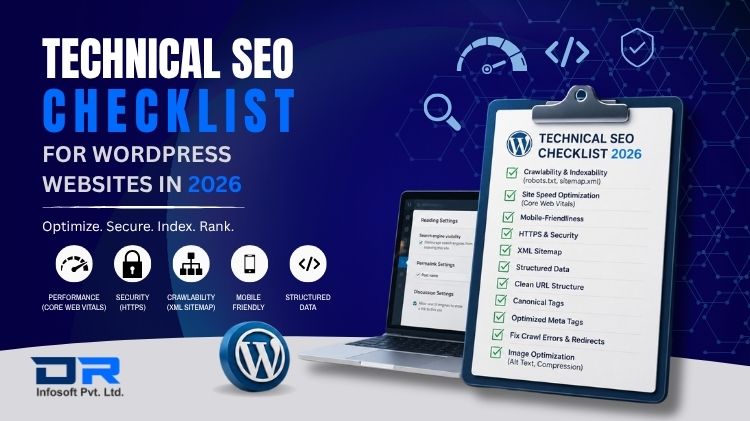
WordPress powers a major section of the web. But just having a WordPress site doesn’t mean Google will adore it. Technical SEO is the behind-the-scenes work to assist search engines in crawling, comprehending, and ranking your website. And the standards are higher, the competition is tougher, and there is less room for error in 2026 than there was.
This checklist consists of everything you need to audit and correct on your WordPress site — from the basics that most people don’t do, to the latest signals that matter more this year.
1. Start with a Full Crawl of Your Site
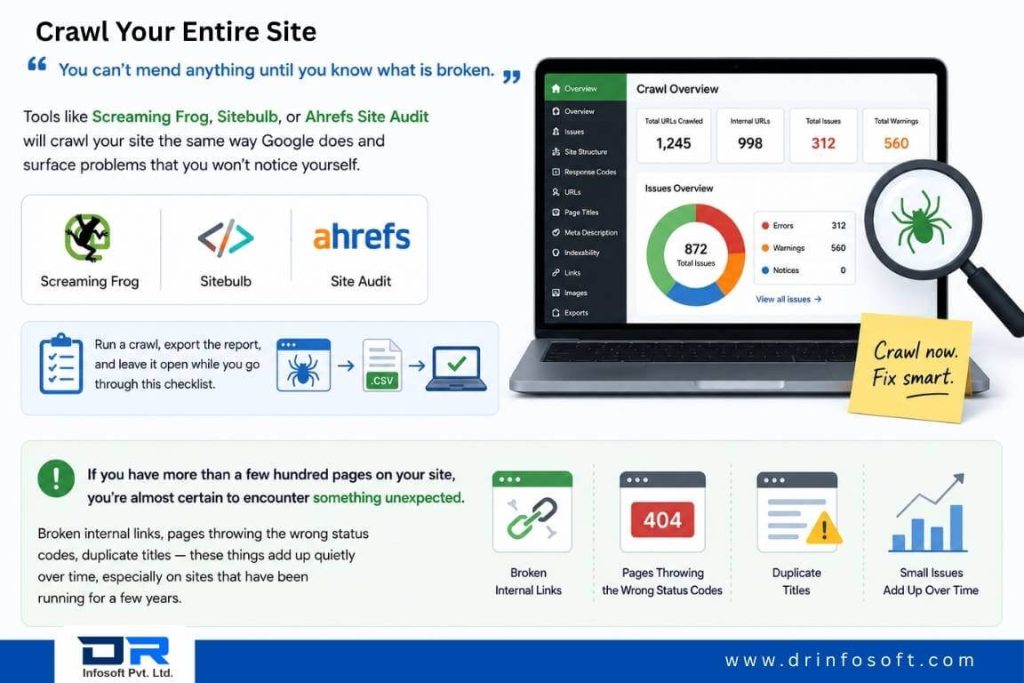
You can’t mend anything until you know what is broken.” Tools like Screaming Frog, Sitebulb, or Ahrefs Site Audit will crawl your site the same way Google does and surface problems that you won’t notice yourself. Run a crawl, export the report, and leave it open while you go through this checklist.
If you have more than a few hundred pages on your site, you’re almost certain to encounter something unexpected. Broken internal links, pages throwing the wrong status codes, duplicate titles — these things add up quietly over time, especially on sites that have been running for a few years.
2. Check Your Indexability Settings
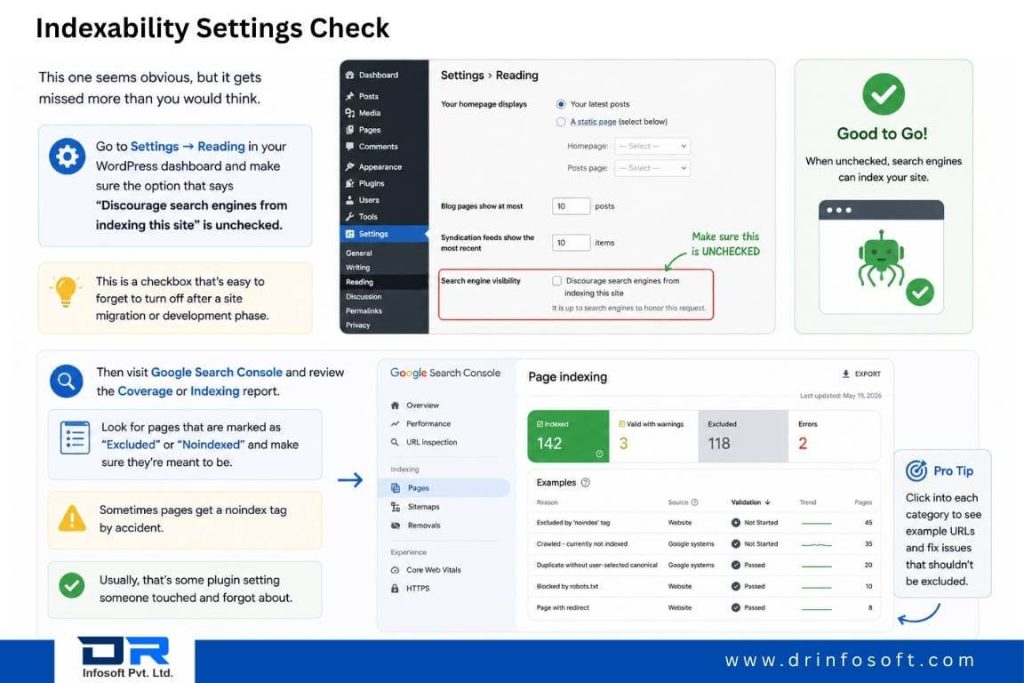
This one seems obvious, but it gets missed more than you would think. Go to Settings → Reading in your WordPress dashboard and make sure the option that says “Discourage search engines from indexing this site” is unchecked. This is a checkbox that’s easy to forget to turn off after a site migration or WordPress development phase.
Then visit Google Search Console and review the Coverage or Indexing report. Look for pages that are marked as “Excluded” or “Noindexed” and make sure they’re meant to be. Sometimes pages get a noindex tag by accident. Usually, that’s some plugin setting someone touched and forgot about.
3. Sort Out Your Permalink Structure
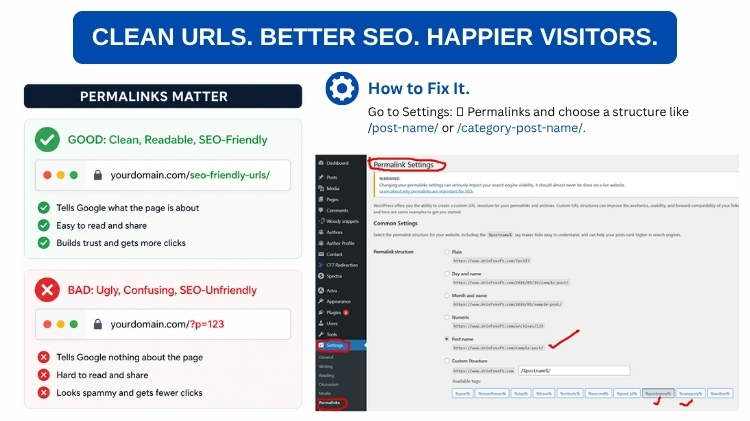
Make sure your URL structure is clean, readable, and consistent. Go to Settings → Permalinks and make sure you are using a structure such as /post-name/ or /category/post-name/. Don’t use the default?p=123 format — it’s ugly, it tells Google nothing about the page, and it makes your URLs harder to share.
If you have chosen a permalink structure and your site is live with real traffic, don’t change it without putting proper redirects in place. One of the fastest ways to lose rankings you’ve been building for months is to change URLs without redirects.
4. Create and Upload XML Sitemap
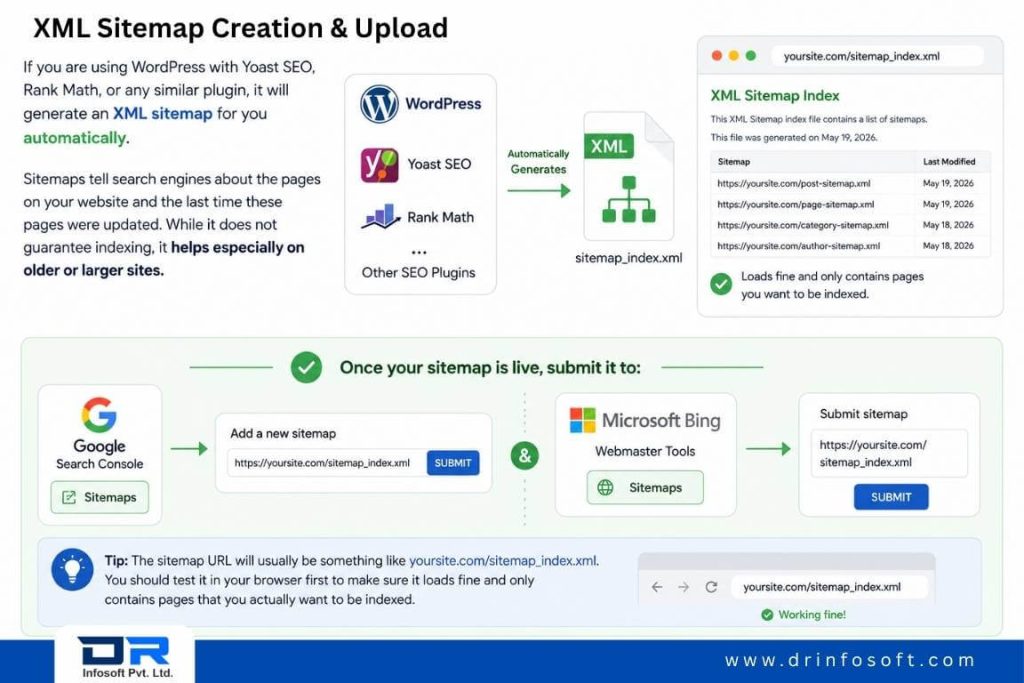
If you are using WordPress with Yoast SEO, Rank Math, or any similar plugin, it will generate an XML sitemap for you automatically. Sitemaps tell search engines about the pages on your website and the last time these pages were updated. While it does not guarantee indexing, it helps especially on older or larger sites.
Once your sitemap is live, you should submit it to Google Search Console and Bing Webmaster Tools. The URL will usually be something like yoursite.com/sitemap_index.xml. You should test it in your browser first to make sure it loads fine and only contains pages that you actually want to be indexed.
5. Set Up Your Robots.txt File
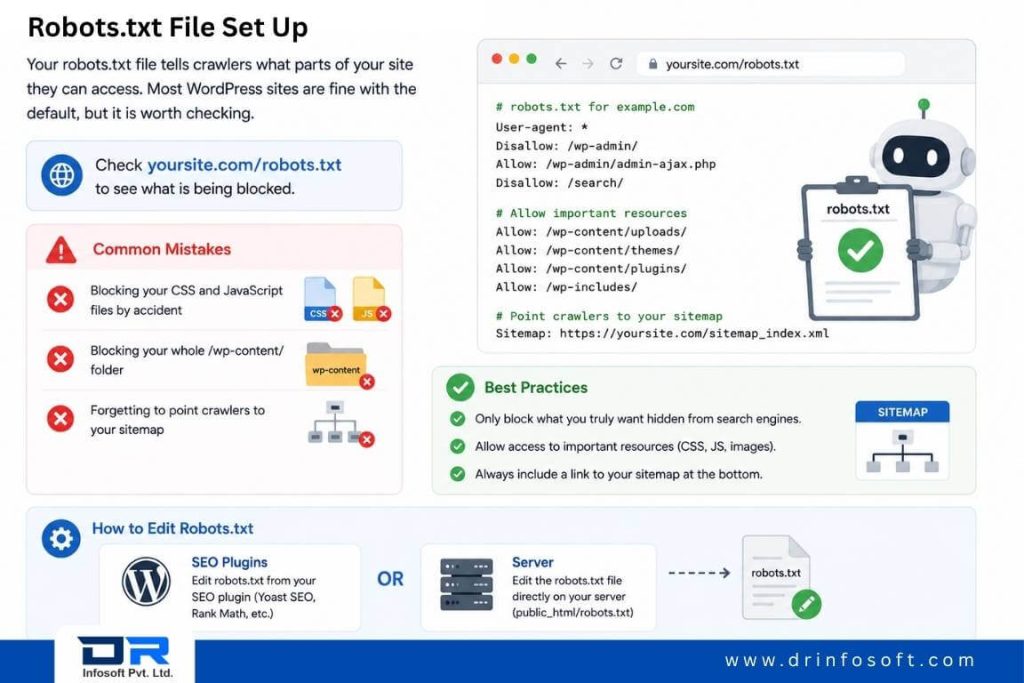
Your robots.txt file tells crawlers what parts of your site they can access. Most WordPress sites are fine with the default, but it is worth checking. Check yoursite.com/robots.txt to see what is being blocked.
Some common mistakes are blocking your CSS and JavaScript files by accident, blocking your whole /wp-content/ folder, or forgetting to point crawlers to your sitemap at the bottom of the file. Most SEO plugins allow you to edit your robots.txt, or you can edit it directly on your server.
6. Fix Broken Links and Crawl Errors
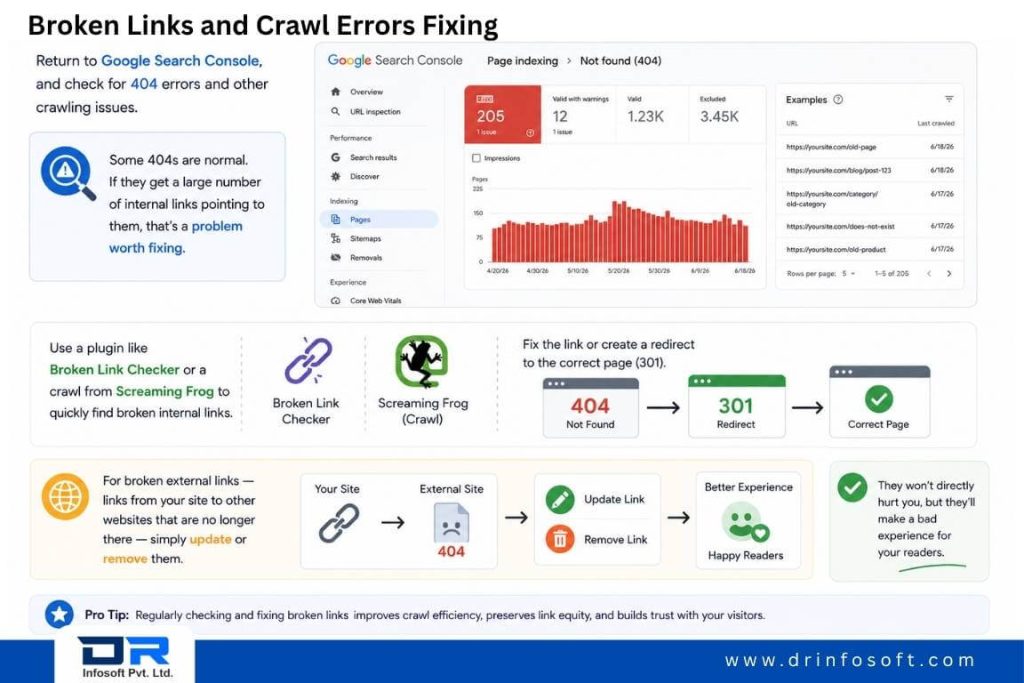
Return to Google Search Console, and check for 404 errors and other crawling issues. Some 404s are normal. If they get a large number of internal links pointing to them, that’s a problem worth fixing.
Use a plugin like Broken Link Checker or a crawl from Screaming Frog to quickly find broken internal links. Fix the link or create a redirect to the correct page (301). For broken external links — links from your site to other websites that are no longer there — simply update or remove them. They won’t directly hurt you, but they’ll make a bad experience for your readers.
7. Make Sure Your Site is Really Fast
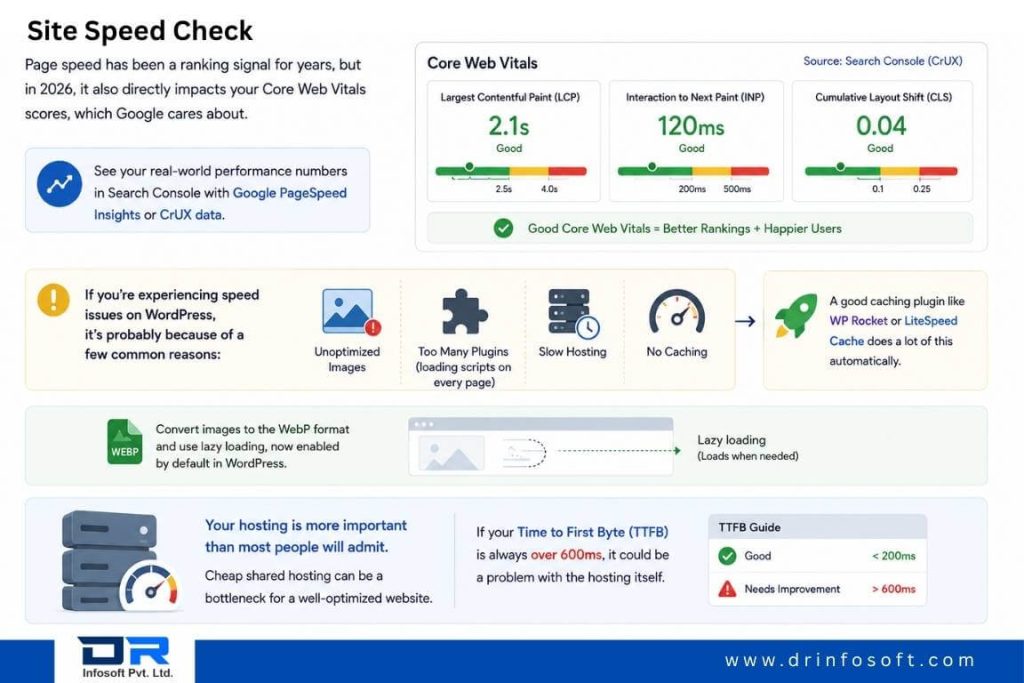
Page speed has been a ranking signal for years, but in 2026, it also directly impacts your Core Web Vitals scores, which Google cares about. See your real-world performance numbers in Search Console with Google PageSpeed Insights or CrUX data.
If you’re experiencing speed issues on WordPress, it’s probably because of a few common reasons: unoptimized images, too many plugins that load scripts on every page, slow hosting, or no caching. A good caching plugin like WP Rocket or LiteSpeed Cache does a lot of this automatically. Convert images to the WebP format and use lazy loading, now enabled by default in WordPress.
Your hosting is more important than most people will admit. Cheap shared hosting can be a bottleneck for a well-optimized website. If your Time to First Byte (TTFB) is always over 600ms, it could be a problem with the hosting itself.
8. Run Your Core Web Vitals Check
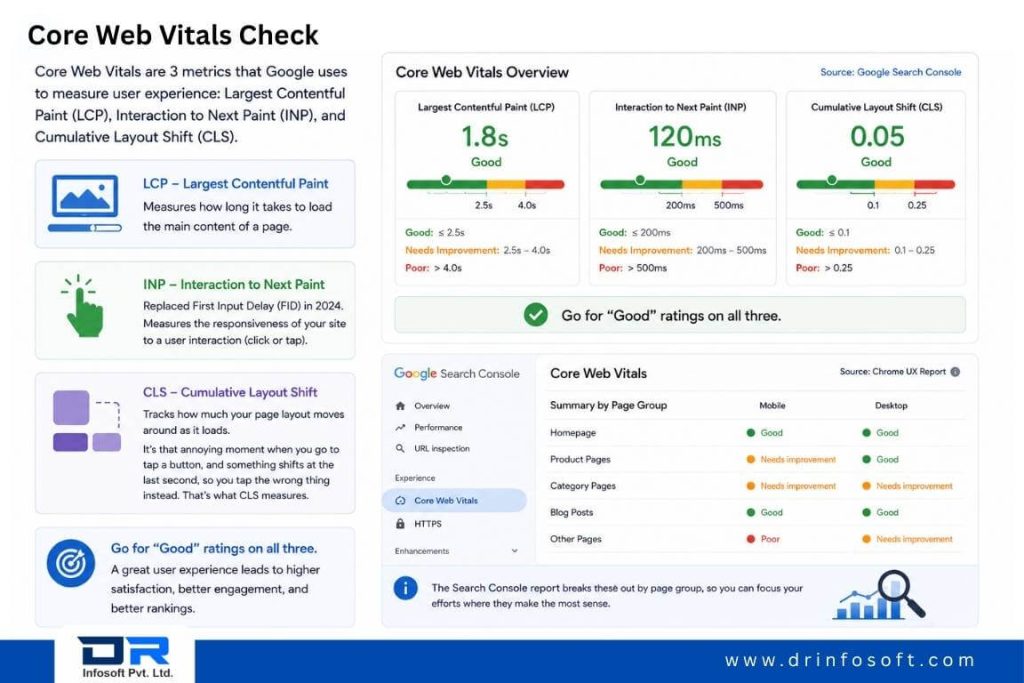
Core Web Vitals are 3 metrics that Google uses to measure user experience: Largest Contentful Paint (LCP), Interaction to Next Paint (INP), and Cumulative Layout Shift (CLS).
Go for “Good” ratings on all three. The Search Console report breaks these out by page group, so you can focus your efforts where they make the most sense.
9. Test Your Mobile Experience
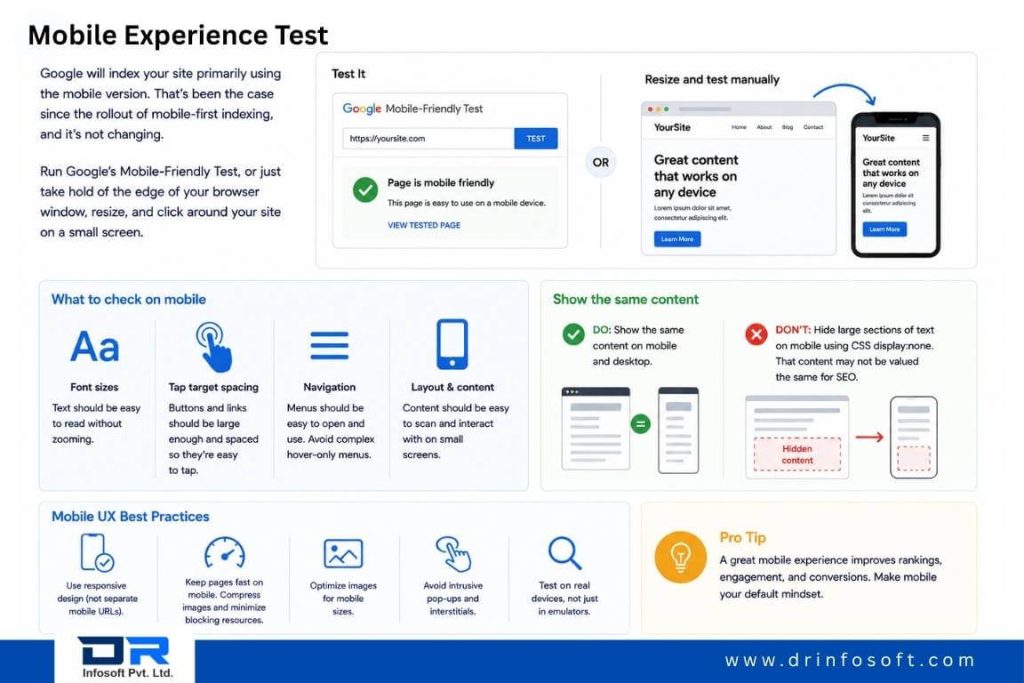
Google will index your site primarily using the mobile version. That’s been the case since the rollout of mobile-first indexing, and it’s not changing. Run Google’s Mobile-Friendly Test, or just take hold of the edge of your browser window, resize, and click around your site on a small screen.
Watch font sizes, tap target spacing, and how your navigation works on mobile. Also, make sure your mobile and desktop versions show the same content. If you hide large sections of text on mobile using CSS display:none, that content may not be valued the same for SEO.
10. Set Up HTTPS and Fix Mixed Content
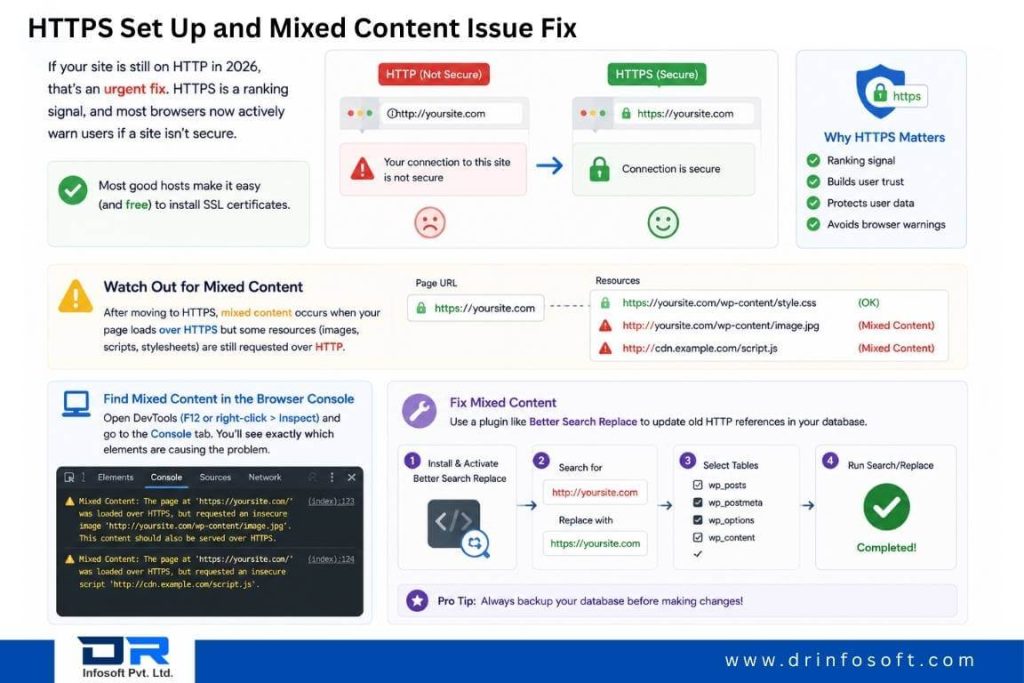
If your site is still on HTTP in 2026, that’s an urgent fix. HTTPS is a ranking signal, and most browsers now actively warn users if a site isn’t secure. Most good hosts make it easy (and free) to install SSL certificates.
Next, watch out for mixed content warnings once you move to HTTPS. These are when your pages are loading over HTTPS, but some resources — images, scripts, and stylesheets — are still being called over HTTP. You will see exactly which elements are causing the problem in your browser console. Use a plugin like Better Search Replace to update old HTTP references in your database.
11. Resolve Duplicate Content Problems
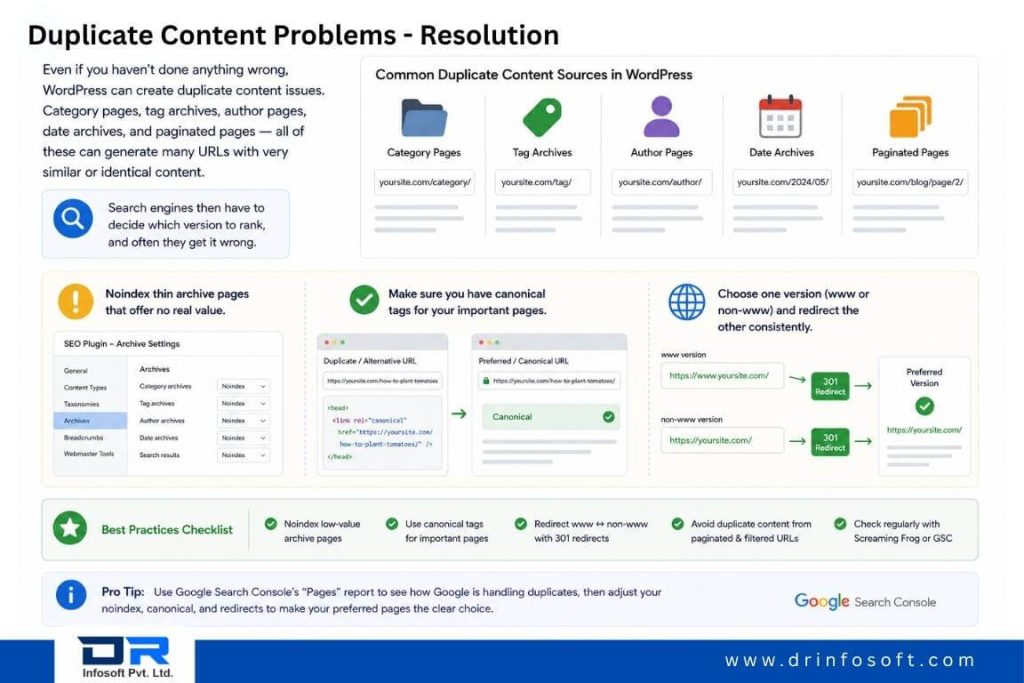
Even if you haven’t done anything wrong, WordPress can create duplicate content issues. Category pages, tag archives, author pages, date archives, and paginated pages — all of these can generate many URLs with very similar or identical content. Search engines then have to decide which version to rank, and often they get it wrong.
Noindex thin archive pages that offer no real value using your SEO plugin. Make sure you have canonical tags for your important pages. And if your site is available as www and non-www versions, choose one and redirect the other consistently.
12. Use Structured Data Where It Fits
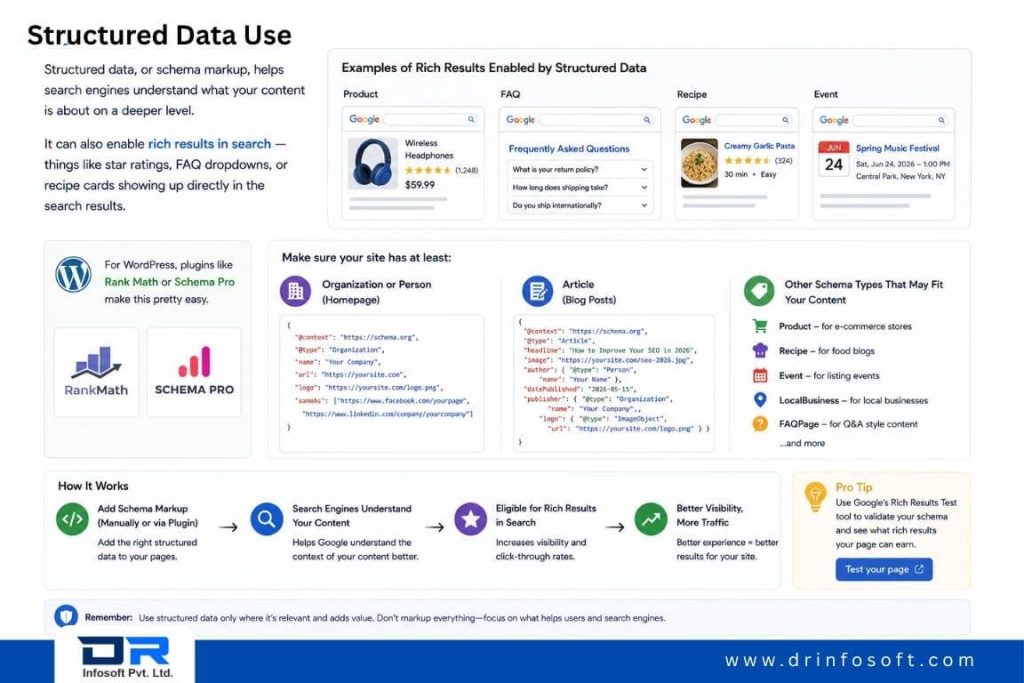
Structured data, or schema markup, helps search engines understand what your content is about on a deeper level. It can also enable rich results in search — things like star ratings, FAQ dropdowns, or recipe cards showing up directly in the search results.
For WordPress, plugins like Rank Math or Schema Pro make this pretty easy. Make sure your site has at least proper Organization or Person schema on the homepage, Article schema on blog posts, and whatever other schema types that make sense for your content — Product for e-commerce, Recipe for food blogs, Event for listing events, and so on.
13. Audit Your Internal Linking Structure
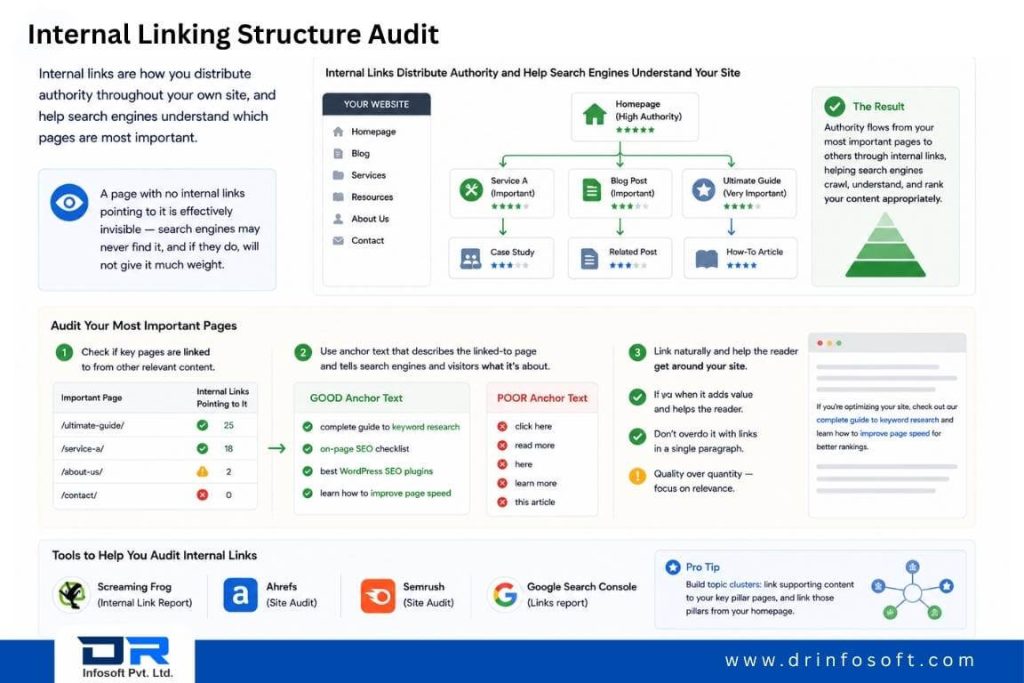
Internal links are how you distribute authority throughout your own site, and help search engines understand which pages are most important. A page with no internal links pointing to it is effectively invisible — search engines may never find it, and if they do, will not give it much weight.
Check your most important pages to see if they are linked to from other relevant content on your site. Use anchor text that describes the linked-to page and tells search engines and visitors what it’s about. Don’t overdo it with links in a single paragraph, but don’t hesitate to link when it really helps the reader get around.
14. Keep Your WordPress Installation Clean and Updated
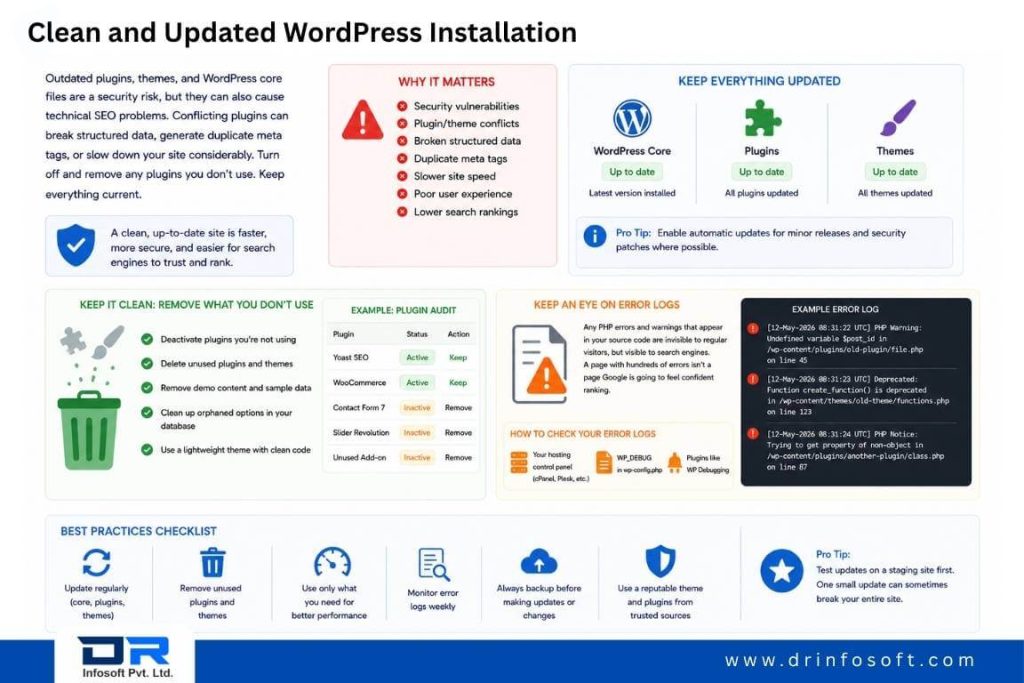
Outdated plugins, themes, and WordPress core files are a security risk, but they can also cause technical SEO problems. Conflicting plugins can break structured data, generate duplicate meta tags, or slow down your site considerably. Turn off and remove any plugins you don’t use. Keep everything current.
Keep an eye on your error logs, too. Any PHP errors and warnings that appear in your source code are invisible to regular visitors, but visible to search engines, and a page with hundreds of errors isn’t a page Google is going to feel confident ranking.
Putting It All Together
Technical SEO is not something you do once and forget. It’s more like maintenance, you do the right things, and then check in every couple of months to make sure nothing’s broken or drifted. A quarterly audit with these items on the checklist will catch most problems before they impact your rankings in any meaningful way.
The good news is that, with the right setup, WordPress is actually a pretty solid SEO platform. The tools exist. The plugins can do it. What often sets good-ranking sites apart from the rest is consistency — getting the basics right and keeping them there over time.
Go through the items you think are most likely broken on your particular site, fix them one at a time, and build from there.